ブログ/tutorials·2026年11月21日·6分·執筆:eroqチーム
Cut your clips on the beat, step by step in the eroq Editor
Pick a style, your clips and a song: the Editor reads the beats and cuts on them, with flashes and punches on the drops. Made in your browser, no credits.
To cut clips on the beat in eroq, open the Editor's New edit, pick a style such as Aura farming or Phonk, choose your clips in order and a song, and press Create: the studio reads the song's beats and cuts your clips on them, with flashes, shakes and punches on the drops. The edit itself costs no credits — it is rendered in your browser — and every cut stays editable on the timeline.
This is the format behind most of the edits people post: the same clips, re-cut so every change of shot lands on the music. Here is how to make one from start to export.
What you need
- Clips or pictures. Anything in your Creations or your Storage: clips you rendered in Video, a trend you remade in Replace, stills from Image, or footage you upload. Pictures work too: the style gives each one a camera move so it never sits still.
- A song. Upload one, take one from your Storage, or use the sound of a reference edit. With no song, the cuts follow a steady 120 BPM grid until you put a song under them.
- Optionally, an edit you like. The Editor can read its cuts and copy its pacing with your clips.
Step 1: open New edit
- Open the Editor. The beat dialog, "Cut on the beat", opens on a style.
- Other ways in: press ⌘K and type "New edit", or open a folder in your Library and press Beat edit to start from the clips inside it.
Step 2: pick a style
Each style card cuts between two clips on its own beats, so you can see the rhythm before you choose.
- Aura farming — black and white, thermal flashes, a punch on every beat.
- Phonk — hard contrast, split colours, shakes and strobes on the drops.
- Villain arc — cold and slow, letterboxed, the screen goes black on the drops.
- Velocity — fast, whip pans and zoom blurs on every hit.
A style is a whole recipe: how often it cuts, which looks ride the shots, how the cuts move, what lands on the beat and the finish of the film. You can change it later in one click; the same clips are simply re-cut.
Step 3: choose your clips, in order
- Under Your clips and pictures, switch between Creations and Storage, filter by Videos or Pictures, or Upload from your computer.
- Pick them in the order you want them to play. Each clip is sliced so the same moment never repeats, and a slot longer than its clip slows the footage down instead of freezing it.
- Mix wide shots and close-ups. Fast styles eat footage: the more varied the clips, the less the edit feels like a loop.
Step 4: add the song
- Under Song, pick one from your Storage or Upload a song.
- The Editor reads the beats in your browser ("Reading the beats…"): the tempo, every beat, the hits, and the drops — the moments where the energy comes back after a quiet stretch. Styles cut and flash on those drops.
- Prefer the rhythm of an edit you have seen? Turn on Copy the rhythm of an edit you like and choose the video. eroq reads its cuts and beats in your browser and recreates its pacing with your clips; Use its sound takes its audio as the song.
Step 5: format and create
- Pick the Format: 9:16 for TikTok, Reels and Shorts, 1:1, 4:5, or 16:9.
- Press Create the Aura farming edit (the button names your style). The studio reads the beats, measures the clips, cuts on the beat and opens the result in the Editor.
Step 6: fine-tune on the timeline
Nothing is baked: every cut, look and hit is on the timeline, where you can move it.
- The Cut on the beat button in the Editor opens the style's dials: Beats per shot (a cut on every beat, or every few beats), Also cut on the drops, Intensity, and the Length of the edit (the song's, or the reference's). The preview plays live on your clips.
- The FX lane at the top shows the hits as diamonds: zoom, flash, shake, RGB split, blur, glitch, dark, strobe. Drag one, double-click to add one, or use the quick menu to punch every beat, flash the drops or clear them.
- The Beats lane above the audio marks the drops and the strong hits, and the magnet snaps your cuts to the beats when you move them.
- Looks ride each clip: thermal, echo, RGB, glitch, VHS, pixel, glow, mirror, invert, duotone. A style rotates a few; you can change any clip's.
- Moving cuts — zoom, whip, spin, glitch — move the picture across the cut instead of fading, so the cut stays on the beat.
Want another style? Apply it from the same panel and the same clips are re-cut in its rhythm.
Step 7: export
- Press Export. Choose the Format (Film, Wide, Vertical or Square), the Quality and the Frame rate.
- The film is rendered on your device, in a recent Chrome, Edge or Safari: keep the tab open until it reaches 100%.
- Keep Save to Creations on if you want to publish it or post it from the studio; the saved file counts against your storage.
What it costs
The edit is free: no engine runs, no credit is spent, and the export happens in your browser. What costs credits is making the clips themselves — each one is priced by the engine that renders it, shown on the Generate button. The trends you see in this week's AI video trends are a good source of clips worth cutting.
Without an account, the beat sync video editor tries the same thing on your own files, with a small "made with eroq.ai" mark on the export.
FAQ
Is it free to make a beat-synced edit?
Yes. The edit and the export cost no credits: they are rendered in your browser. A new account also starts with 40 free credits, no card needed, for the clips you want to render first.
Can I use photos instead of videos?
Yes. Pick pictures alongside or instead of clips: each still gets a camera move from the style, so it moves on the beat like footage.
What happens if I don't add a song?
The cuts follow a 120 BPM grid. Put a song on an audio lane later and apply the style again: the cuts move to its real beats.
Can I copy the pacing of an edit I saw?
Yes. Turn on Copy the rhythm of an edit you like and choose the video: eroq reads where it cuts and where its beats fall, then cuts your clips the same way. Use footage you own or are allowed to use.
Why won't the export start?
Exporting encodes video inside your browser. Use a recent Chrome, Edge or Safari, and keep the tab open while it runs. More in the help center: The Editor.
Open New edit and cut your first one.
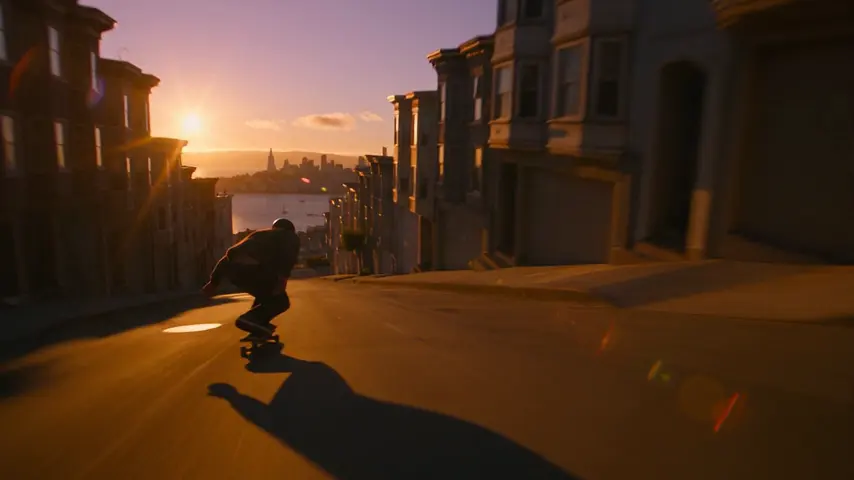
このプロンプトを試す
Tracking shot alongside a skateboarder bombing down a steep San Francisco street at golden hour, low angle, motion blur
プライバシー
プライベート、そして制限なし
- →eroq独自のエンジンにフィルターはなく、明文化されたポリシーがひとつあるだけ。
- →何も保持せず、あなたの作品を学習に使うこともありません。
- →プライベートモードはファイルを一切残しません。