blog/guides·Sep 11, 2026·7 min·by the eroq team
The AI video quality checklist — what to check before delivery
Seven checks that separate a render from a deliverable — one action per clip, a consistent look, cast continuity, frame, audio, takes and editor fixes.
There is a gap between a clip that rendered and a clip you can send to a client, and most of it has nothing to do with the model. It is whether the shot holds one idea, whether scene four looks like it came from the same production as scene one, whether the face is the same face, and whether you are about to deliver a silent video.
Run this list before you export. It takes about ten minutes and saves the round of revisions where someone says "it just feels off" and cannot say why.
1. One action per clip
The most common failure in AI video is a prompt describing a whole scene when the clip is five seconds long. Five seconds holds one action; two verbs turn into mush, because the model serves both and commits to neither.
Bad, because it is three shots pretending to be one:
She walks into the bar, orders a drink, then turns as the door opens behind her.
Good, because it is one action with a camera and a mood attached:
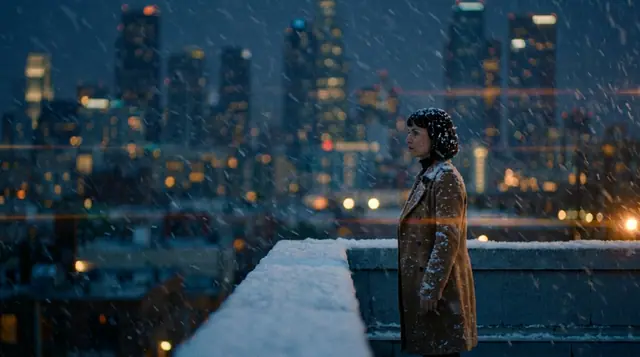
A woman in a rain-dark coat pushes through a bar door and stops, letting the noise settle around her. Slow push-in, 35mm film, practicals and neon spill, warm film palette, calm tempo, shallow focus on her face.
That second one is the shape prompts want here — one flowing paragraph, 30 to 80 words, naming subject, motion, camera, light and mood. If your prompt has a "then" in it, you have two clips.
2. One look across every scene
A sequence reads as one production when the grammar stays fixed and only the content changes. The director's rack in the Film panel of Cinema is a set of dials for exactly this: film type, era, tempo, camera gear, lens, aperture, lighting and palette, applied to every scene unless a scene overrides them.
Lock them before scene one, then change only the subject and the camera move between shots. A neon noir palette in scene one and a warm film palette in scene three does not read as variety — it reads as two videos cut together by mistake.
Three scenes, one look, changing only what should change:
Scene 1 — A courier chains her bike to a railing outside a shuttered
arcade, breath visible in the cold. Static shot.
Scene 2 — She pulls a folded envelope from her jacket and reads the
address twice. Close-up.
Scene 3 — She steps into the arcade doorway and the light swallows her
outline. Slow push-in.

Look, identical on all three — film noir, 1980s, calm tempo, 35mm film,
anamorphic lens, f/1.4, neon noir palette, practicals.
Say the look out loud once and reuse it verbatim. Consistency is a copy-paste problem, not a talent problem.
3. Cast continuity
If a person appears in more than one clip, they need to be a Character, not a description. A Character on /studio/characters holds a name, a persona and reference photos, and you call it into a prompt with an @mention so the same face carries across every scene.
Three habits that keep a cast consistent:
- Use the same reference set throughout a project. Swapping in a new photo halfway is the same as recasting.
- Animate a still you already approved. Give a clip a reference image and the engine animates from it, which anchors the face far better than describing it again.
- Use a seed where the engine honors one. Same seed and same prompt gives you the same take, which turns "try again" into a controlled variation instead of a lottery.
Check this first in a multi-scene piece, because it is the one flaw that cannot be fixed downstream. Color can be graded, pacing can be cut, a different face cannot.
4. Frame and resolution matched to the channel
Render in the shape you are going to publish. Do not render 16:9 and crop to vertical later — you lose the composition the model actually made and you usually lose the subject's head with it.
- 9:16 vertical for TikTok and Reels.
- 1:1 square for feed placements.
- 16:9 wide for YouTube and anything embedded on a site.
Wider and taller options exist for video too. What each ratio does to composition is on /glossary/aspect-ratio.
Native resolution is capped by the engine you chose, not by your ambition — some serve 480p and 720p, others go to 1080p, 2K or 4K. Check the roster on /models before you promise a client a 1080p master. eroq Upscale (coming soon) can take a finished clip to 1080p or 2K afterward (Video › Edit › Upscale), but it sharpens the frames you rendered rather than fixing them, so the render is still the deliverable.
Clip length is capped twice: by the engine's own grid and by your plan. Free accounts render up to 10 seconds, and paid plans go to 15, 20 and 30. Plan the edit around the length you can actually render.
5. Audio, decided on purpose
Many engines now render sound with the picture, Veo 3.1 Fast among them: ambience, effects and the lines you write. Others, such as Hailuo 3 Max, Runway Gen-4.5 and Grok Imagine, render silent clips.
So there are two valid states for a deliverable, and "I forgot" is not one of them:
- Native sound, if you rendered on an engine that produces it, or
- A track you laid in yourself — a voice-over from /studio/voice using a roster voice or your own cloned one, plus music and effects, laid under the picture in the Editor or in your own editor.
One framing note, since it catches people out: a track laid in afterwards is not lip-synced. Only lines rendered with the picture move the mouth. A voice-over over a tight close-up of a talking mouth will not match, and viewers notice within half a second. Frame narration over action, over hands, over a face that is listening — which is better filmmaking anyway.
6. Takes, not rewrites
When a shot is nearly right, run it again rather than rewriting it. Cinema lets you render one to four takes of the same shot and keep the best one, and that is cheaper and faster than six prompt revisions that each change three variables at once.
Rewrite when the content is wrong — wrong action, wrong cast, wrong frame. Re-take when the content is right and the execution wobbled. Confusing the two is how an afternoon disappears. More on /glossary/take.
7. Fix it in an editor, not the renderer
This is the item that saves the most credits. The following are editor jobs, not reasons to re-render:
- trimming a clip that runs half a second long,
- transitions between scenes,
- color grading to match two shots,
- speed ramps, stabilization, crops within the frame you rendered,
- stacking voice-over, music and effects.
Cut it in the Editor, where trims, transitions, grades, speed changes and stacked audio take minutes on a timeline and cost no credits, or finish in Premiere or After Effects if that is your tool. Re-render only when the pixels are wrong, not when the arrangement is.
The list, short enough to pin up
- One action per clip, no "then".
- The same look on every scene — rack locked, content varied.
- Same Character and same reference photos across the whole piece.
- Rendered in the publishing aspect, at a resolution the engine actually serves.
- Audio decided — native sound or a track you laid in.
- Best take chosen, not the first one that finished.
- Trims, transitions and grading done in the editor.
Then watch it once with the sound off and once with your eyes closed. Whatever survives both is deliverable.
FAQ
Why do my AI video scenes look like different productions?
Almost always because the look changed between renders. Lock film type, era, tempo, camera gear, lens, aperture, lighting and palette once, reuse them verbatim, and vary only the subject and the camera move.
Can I add lip-synced dialogue to an AI video clip?
Only by rendering it: on an engine with sound, the lines you write for a shot are spoken with the picture. There is no lip-sync for audio added afterwards, so a voice-over belongs under framing that does not show a mouth speaking the line.
Should I re-render a clip or fix it in my editor?
Fix it in the editor whenever the problem is arrangement — length, transitions, color match, speed, audio. Re-render only when the content itself is wrong, and prefer an extra take over a rewritten prompt.
Run the list, then publish the result to /community — or start the next one in the video tool.
 Cinema
Make it in eroq
Cut it in Cinema
Everything above happens in the studio: same engines, same settings, rendered on your click.
Prompts from this article
40 free credits · no card · private mode on every account