blog/trends·Nov 12, 2026·6 min·by the eroq team
GTA AI filter: turn your photo into GTA loading-screen art
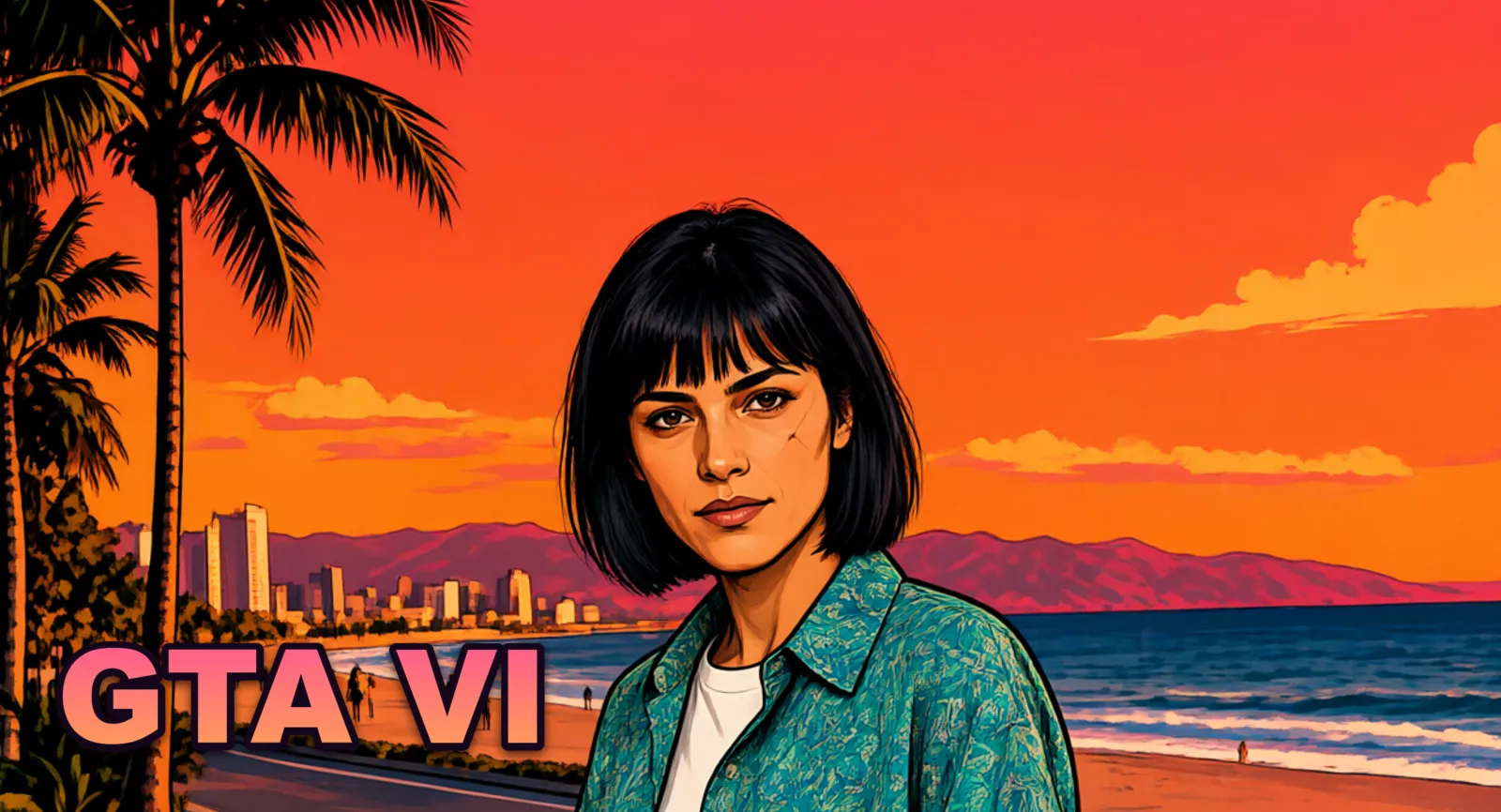
The GTA filter from one photo with AI, bold ink outlines, cel shading and a sunset palette with your face kept. Then animate it for GTA 6 week.
Make these trends
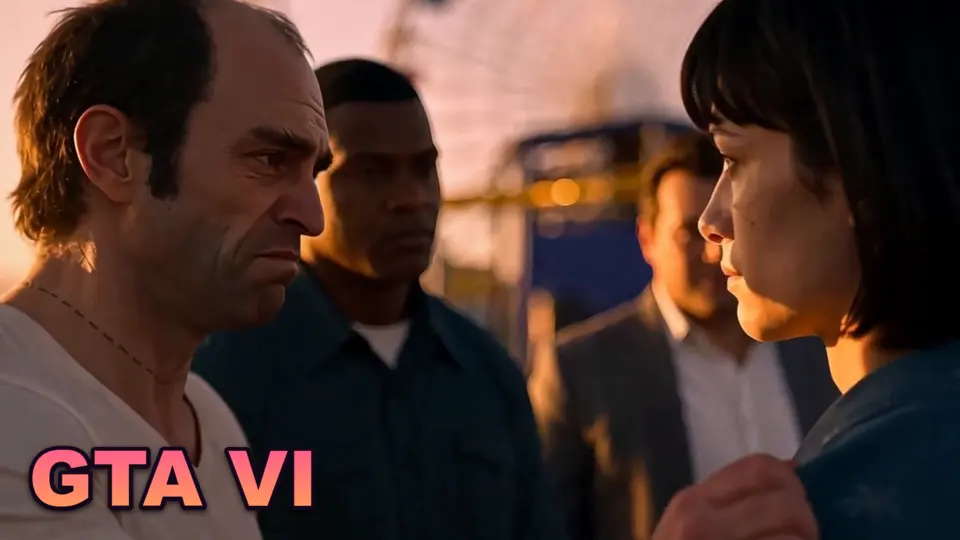
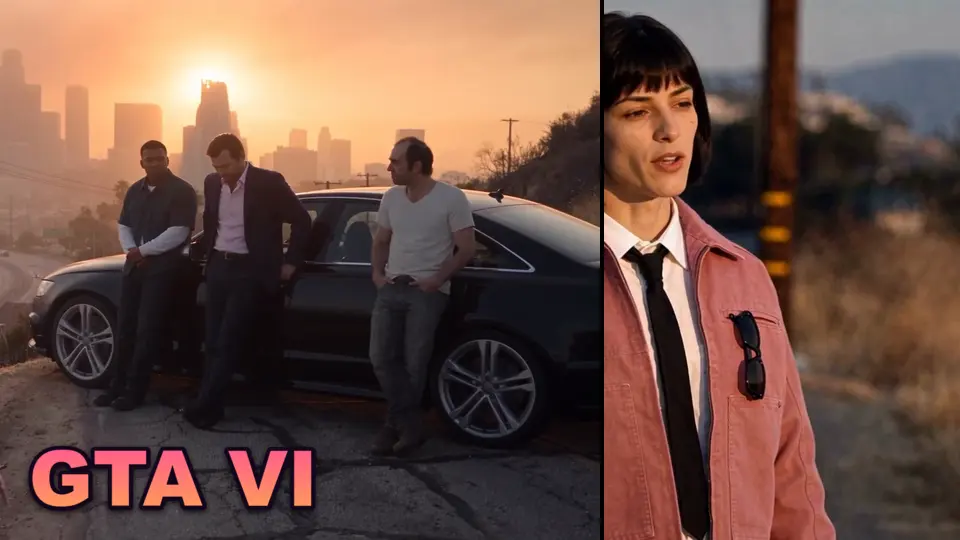
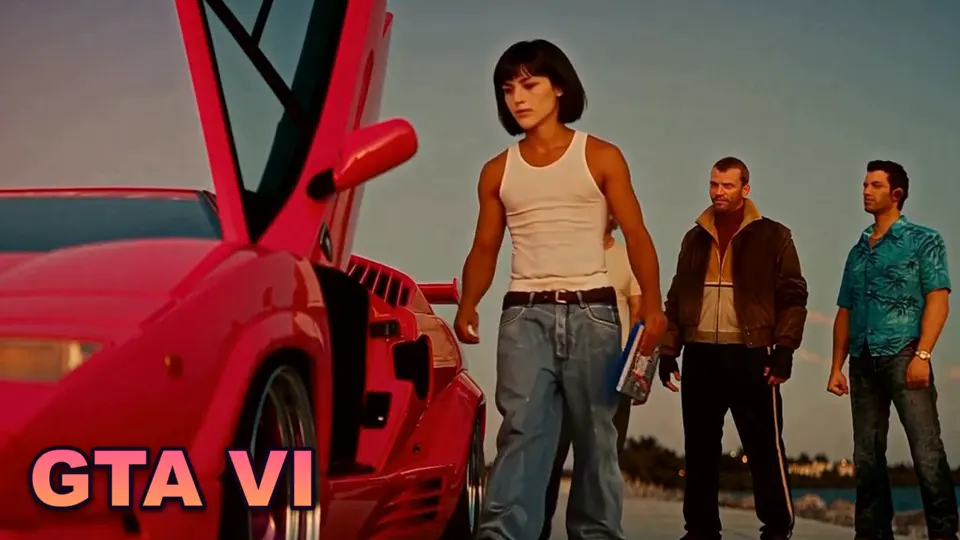
The GTA filter turns an ordinary photo into the artwork of a Grand Theft Auto loading screen: thick black outlines, flat saturated colours, a dramatic low angle, an orange sky and palm trees behind, and your own face in the middle of it. It has been one of the most searched AI looks for two years, and with GTA 6 out on 19 November 2026 it is back everywhere. This guide covers where the look comes from, why it works so well, and how to make it in eroq in one click, from one photo.
Where the GTA filter comes from
Grand Theft Auto has dressed its loading screens in illustrated artwork for two decades: the characters drawn in heavy ink lines, poster colours and confident poses, a sunset or a skyline behind them. The style is so recognisable that it became a filter. The first versions were face filters and phone apps; then AI image tools made it possible to redraw a whole photo in the style, and CapCut templates of the « GTA loading screen » trend ran into the millions of views. Around the release of GTA 6, it is the easiest way to put yourself on the poster.
Why the look works so well
- One glance is enough. Ink outlines, flat colour and a sunset read as GTA before anyone sees the face.
- It flatters. Cel shading smooths skin, sharpens the jawline and turns any pose into a poster.
- Any photo works. A selfie, a mirror shot, a holiday picture: the style carries the scene.
- It travels. It becomes a profile picture, a thumbnail, a story, and with one more step a clip.
Make the GTA filter in eroq
The quickest way is the GTA filter effect: your photo goes in, and a short clip comes back where it turns into loading-screen art.
- Open the effect. Go to Video, Effects: the GTA filter is the first card.
- Drop your photo. One where your face and your outfit are clear and well lit, or a picture of a character you made.
- Generate. Add a few words if you like (a pose, a place). The photo turns into GTA loading-screen art, bold ink outlines, cel shading, an orange and pink sky, while the camera pushes in: five seconds, from 50 credits on eroq Motion One.
Only the picture
Want a still for a profile picture or a thumbnail? Make it in the image studio:
- Open the image studio. Go to Image and switch to the Edit tab.
- Drop your photo. Pick one where your face and your outfit are clear and well lit.
- Paste the look. Write what you want, or start from this prompt:
Turn my photo into GTA-style loading screen art: bold black ink outlines, cel-shaded comic illustration, flat saturated colours, a dramatic low angle, an orange and pink sunset sky with palm trees behind. Keep my face, my hair and my outfit recognisable. No text, no logos
- Generate. Eroq One edits the photo in a few seconds and keeps your face. Generate a few takes and keep the best.
- Animate it. Press Animate under the picture: it becomes the first frame of a short clip, and a few words say what happens (the camera pushes in, the palm trees sway, a car drives past).
Variations people post
- On the hood of a car: sitting on a pink sports car on an ocean drive at sunset.
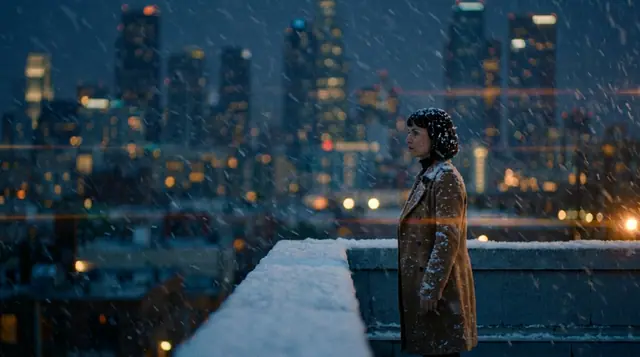
- The rooftop: standing at the edge of a rooftop, the city skyline glowing behind.
- The duo: two friends back to back, each with their own pose, one photo with both in it.
- Beach day: on a jet ski or on the sand, turquoise water and a lifeguard tower behind.
- The night version: neon signs in pink and cyan instead of the sunset.
Add the scene to the prompt and keep the last sentence: « Keep my face, my hair and my outfit recognisable ».
Getting a good result
- Front-facing, sharp photos keep the face best. Sunglasses and a cap make it harder.
- Say what stays. The words « keep my face, my hair and my outfit » are what keep it you.
- Want a character instead of a photo? Create a character once and @mention it in Create: it keeps the same face in every picture, GTA-style or not.
- No words in the picture. « No text, no logos » keeps the poster clean; add your own title later if you want one.
What it costs
| Step | Price | Notes |
|---|---|---|
| The GTA filter effect | from 50 credits for five seconds | Your photo turns into the art, on eroq Motion One |
| A GTA-style photo | 10 credits a take on Eroq One | Edits your photo and keeps the face |
| Animate it | from 50 credits for five seconds | On eroq Motion One, more on the other engines |
A new account starts with 40 free credits, no card needed: enough for 4 GTA-style photos. More takes come from a pack or a plan, and a render that fails is refunded.
Who you can put in it
Yourself, a character you made, or a friend who agreed to it: the usage policy rules out real, identifiable people without their consent, and everyone in the picture is 18 or older. GTA and its artwork belong to Rockstar Games and Take-Two Interactive, and eroq is not affiliated with them: the filter borrows the look, never the logos.
More GTA 6 trends
The GTA 6 AI page gathers every GTA trend you can make in eroq. You can put yourself in the viral goodbye to GTA V, or read all the GTA 6 AI trends in one place.
FAQ
What is the GTA AI filter?
A look that redraws a photo as the illustrated artwork of a GTA loading screen: bold ink outlines, cel shading, flat saturated colours, a sunset or a skyline behind, with the person's face kept.
How do I make the GTA filter with AI?
In one click: open Video, Effects in eroq, pick the GTA filter and drop your photo. The clip turns it into GTA loading-screen art while the camera pushes in, from 50 credits on eroq Motion One. For a still picture, use the Edit tab of the image studio and ask for GTA-style loading screen art that keeps your face, your hair and your outfit: 10 credits a take on Eroq One.
Is there a free GTA AI filter?
A new eroq account gets 40 free credits with no card, enough for 4 GTA-style photos on Eroq One.
Can I turn the GTA filter into a video?
Yes, that is what the GTA filter effect does: the clip starts on your photo and turns it into the art while the camera pushes in, from 50 credits for five seconds on eroq Motion One. A still from the image studio animates too: press Animate under it.
Can I do it with a friend?
Yes: use one photo with both of you in it, and both of you should agree to it. Everyone shown is 18 or older.
Is it the official GTA style?
No. eroq is not affiliated with Rockstar Games: the filter reproduces the general look of the loading-screen art, never the logos or the game's characters.
 Video
Make it in eroq
Shoot it in Video
Everything above happens in the studio: same engines, same settings, rendered on your click.
40 free credits · no card · private mode on every account