
博客/tutorials·2026年9月28日·4 分钟·作者:eroq 团队
AI image generation in Photoshop — new layers and edits from a sentence
The eroq Photoshop plugin generates images as layers and edits your canvas, or just the selection, from a plain-language instruction. Install, connect, workflow and costs.
Most AI image tools end with a download button, and then the real work starts in Photoshop: import, align, mask, blend. The eroq plugin skips the round trip. It renders straight into your open document as a new layer, and it can edit the picture you already have from a sentence — the whole canvas or just the selection — with the result masked and aligned where it belongs.
Install
The plugin needs Photoshop 2023 (v24) or later, on macOS or Windows.
- Download the
.ccxfrom eroq for Photoshop and double-click it. Creative Cloud opens and installs it. During the beta the plugin is not distributed through Adobe's Marketplace, so Creative Cloud warns that it has not been verified by Adobe — choose Install locally. - In Photoshop, open Plugins → eroq.
Connect, once
Click Connect eroq. Photoshop asks once whether the plugin may open your browser; allow it. On eroq.ai, sign in if needed and click Allow — the page then shows a short-lived code with a Copy button. Paste it into the panel and click Finish.
The copy step exists because Photoshop plugins cannot receive a browser redirect themselves. The code works once, for two minutes, and only together with a secret the panel kept, so it is useless to anyone else. The key the plugin receives is listed under Developers → API keys as « Photoshop · tag (connected) » and can be revoked there at any time.
Generate a layer
Write a prompt, pick a model and a format — 1:1, 3:4, 4:3, 9:16 or 16:9 — and press Generate. The render lands as a new layer named after your prompt, fitted inside the canvas. It is a Smart Object, so you can scale it freely and rasterize when you are done, and the whole placement is one history step: ⌘Z / Ctrl+Z takes it out.
With no document open, the render opens as a new document instead.
On models that read pictures — Krea2, Eroq Uncensored, Eroq One — you can send the whole canvas, the selection or the active layer as a reference along with the prompt. That is the quickest way to keep a product, an outfit or a face consistent while changing everything around it.
A picture costs 10 credits on Krea 2 and 10 on Eroq One.
Edit with a sentence
This is where the plugin earns its place. Open an image, switch to Edit, and describe the change as an instruction:
make it golden hour, long warm shadows from the left
swap the denim jacket for red leather, keep everything else
The visible image goes to eroq's instruction editor, and the result comes back as a new layer aligned exactly over the canvas — your original stays untouched underneath, so comparing, masking or blending the two is ordinary Photoshop work.
Pick Selection instead of the canvas and only the selected area is sent. The edited patch comes back aligned over it and masked to your selection, which makes localized changes — a sky, a sign, a garment — a two-click job.
Tips that make edits land:
- One change per instruction. « Make it night » works; « make it night, add rain, change her coat and remove the car » is four edits fighting for the same pixels.
- Say what stays. « Keep the face and the pose » is not wasted words; the editor honors it.
- Select generously. A little context around the area you change blends better than a tight crop.
An edit costs what a render of the chosen model costs; failed renders refund themselves, and eroq's message is shown as is if something is refused.
While it renders
The status line tells you whether the job is waiting for a worker (a cold start, usually seconds) or generating. The credits meter sits in the panel header — click it to refresh. Photoshop stays usable the whole time.
FAQ
Is this Photoshop's own Generative Fill?
No — it is a separate plugin that sends your picture to eroq's models and places the result as a layer. It works alongside Photoshop's own tools and bills your eroq credits, not Adobe's.
Does it work on Windows?
Yes, Photoshop 2023 or later on macOS or Windows.
Where is the rendered file?
Inside your document, as a Smart Object layer. Every render is also kept in your eroq library.
Can I use it on two computers?
Yes. Each install connects under its own name, so connecting a second computer does not disconnect the first.
Get it from eroq for Photoshop.
试试这个提示词
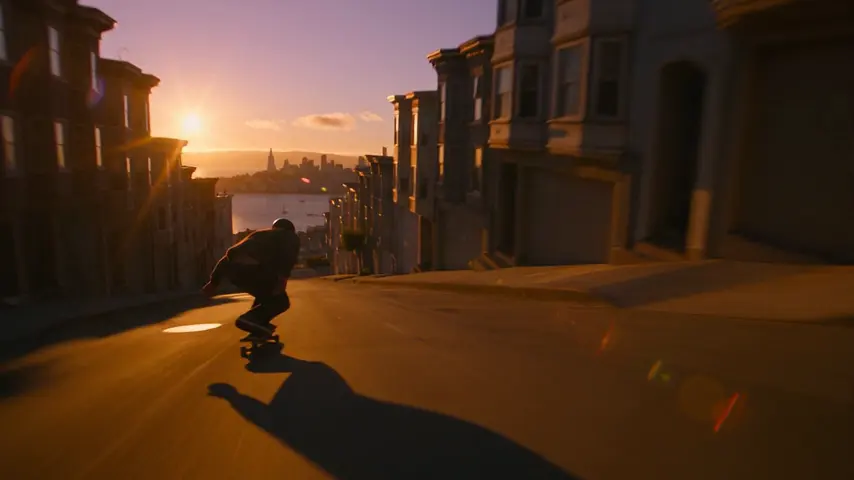
Tracking shot alongside a skateboarder bombing down a steep San Francisco street at golden hour, low angle, motion blur