Publish a film
1 min di lettura
In breve
Publish, in a film's header, posts the cut to TikTok, Shorts and Reels, starts a series on autopilot, or puts the film on the community shelf after a review.
In questa pagina
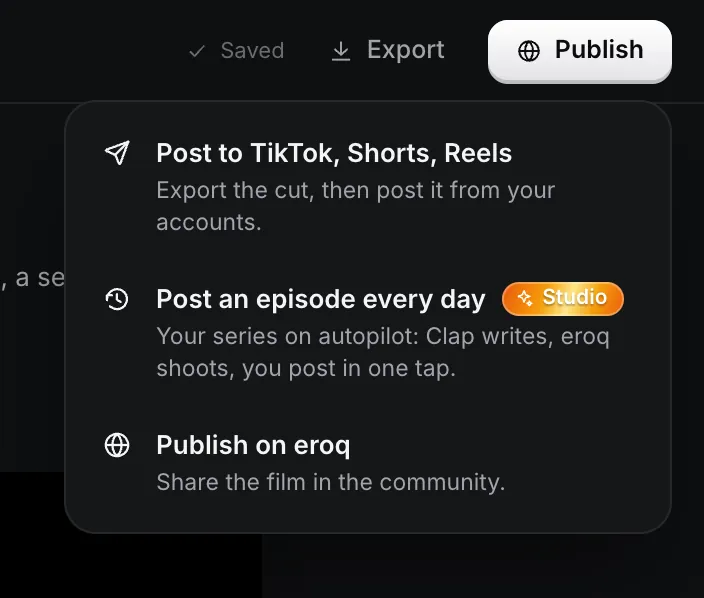
Publish, in the film's header, opens three ways out: Post to TikTok, Shorts, Reels; Post an episode every day; and Publish on eroq, the community shelf, step by step here.
Publish › Publish on eroq, once at least one shot is rendered. The draft is saved first; a film you edited goes out as its exported cut, one never edited as its shots back to back.
Give it a title and a cover: generate one (the title and the eroq mark on a gradient; generate again for another palette), take the first frame, or upload a picture.
Confirm. The film is queued for review and appears on /community and in Explore once approved; your prompts and settings stay private.
Remove it any time with Unpublish — likes, comments and views survive a later re-publish. A new cover on an approved film sends it back through review.
Post to TikTok, Shorts, Reels
The cut goes out from your own accounts. If the timeline changed since the last export, the export window opens first and saves an MP4; then the post sheet takes over: your caption, the accounts you connected in Connectors, and the AI-generated label each platform asks for. Posting comes with the Creator plan and above. On a phone, this menu is also the way to the export.
Post an episode every day
Your film as a series on autopilot, from the Studio plan: on your schedule Clap writes the next episode, eroq shoots it and the post waits for your tap. See Post a series every day.
Questa risposta ti è stata utile?
Correlati
Sei ancora bloccato?
Raccontaci cos’è successo e una persona ti risponde entro un giorno lavorativo, oppure scrivi a hello@eroq.ai